
Applications
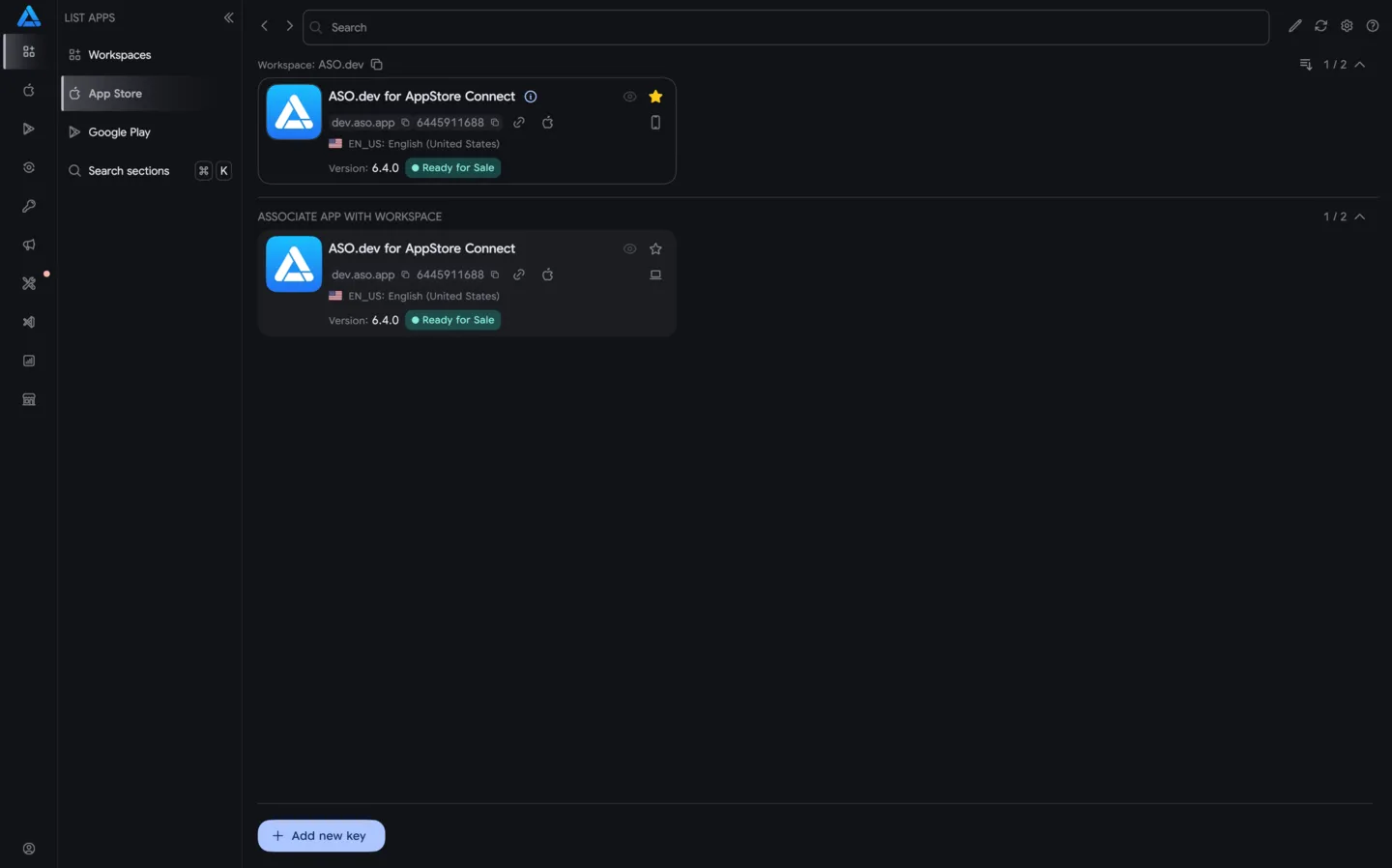
On the App List screen, you’ll see a complete list of all apps available in your workspace.
When using a .p8 API key, this list includes all apps accessible in your Apple Developer account.
Managing Apps
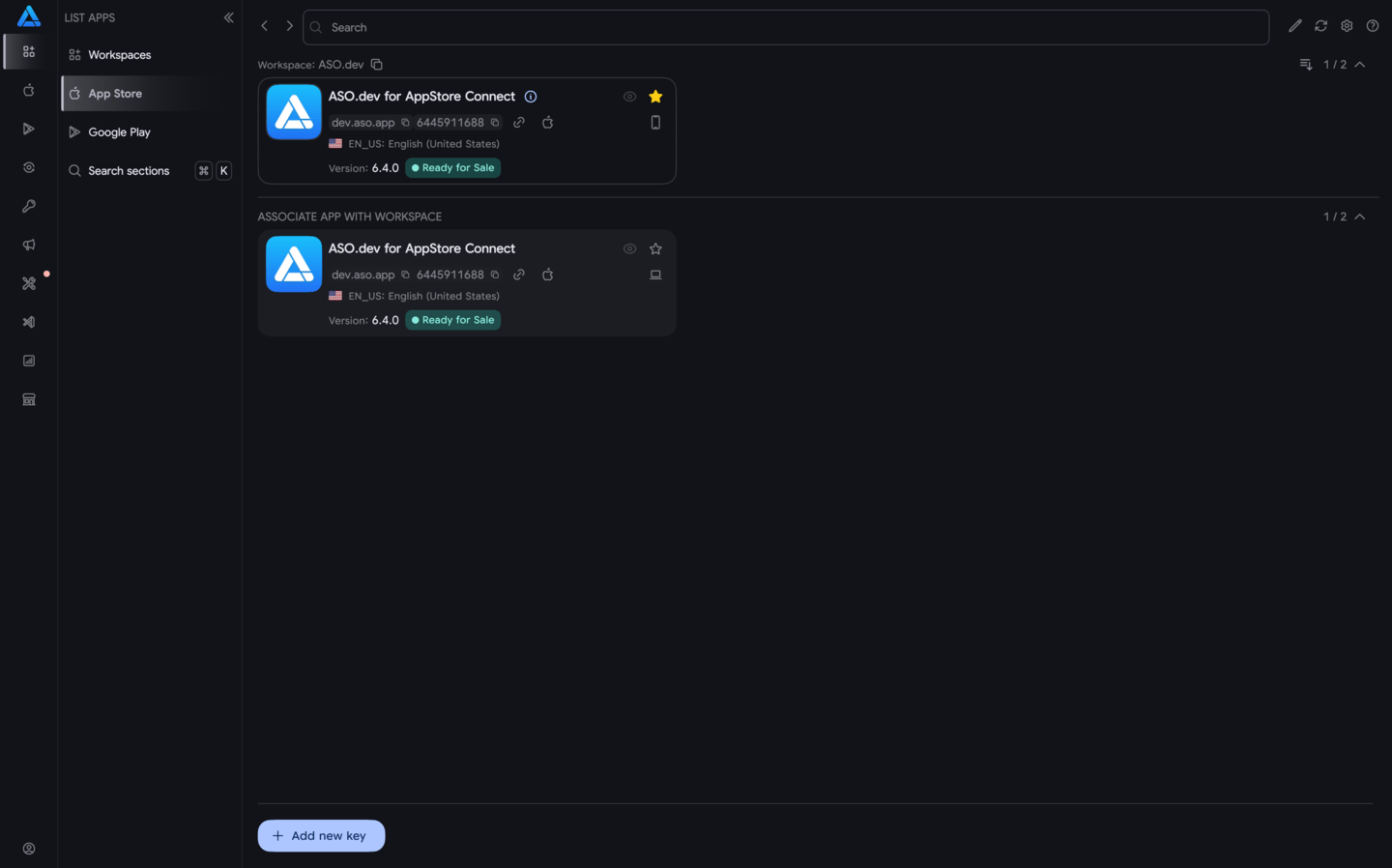
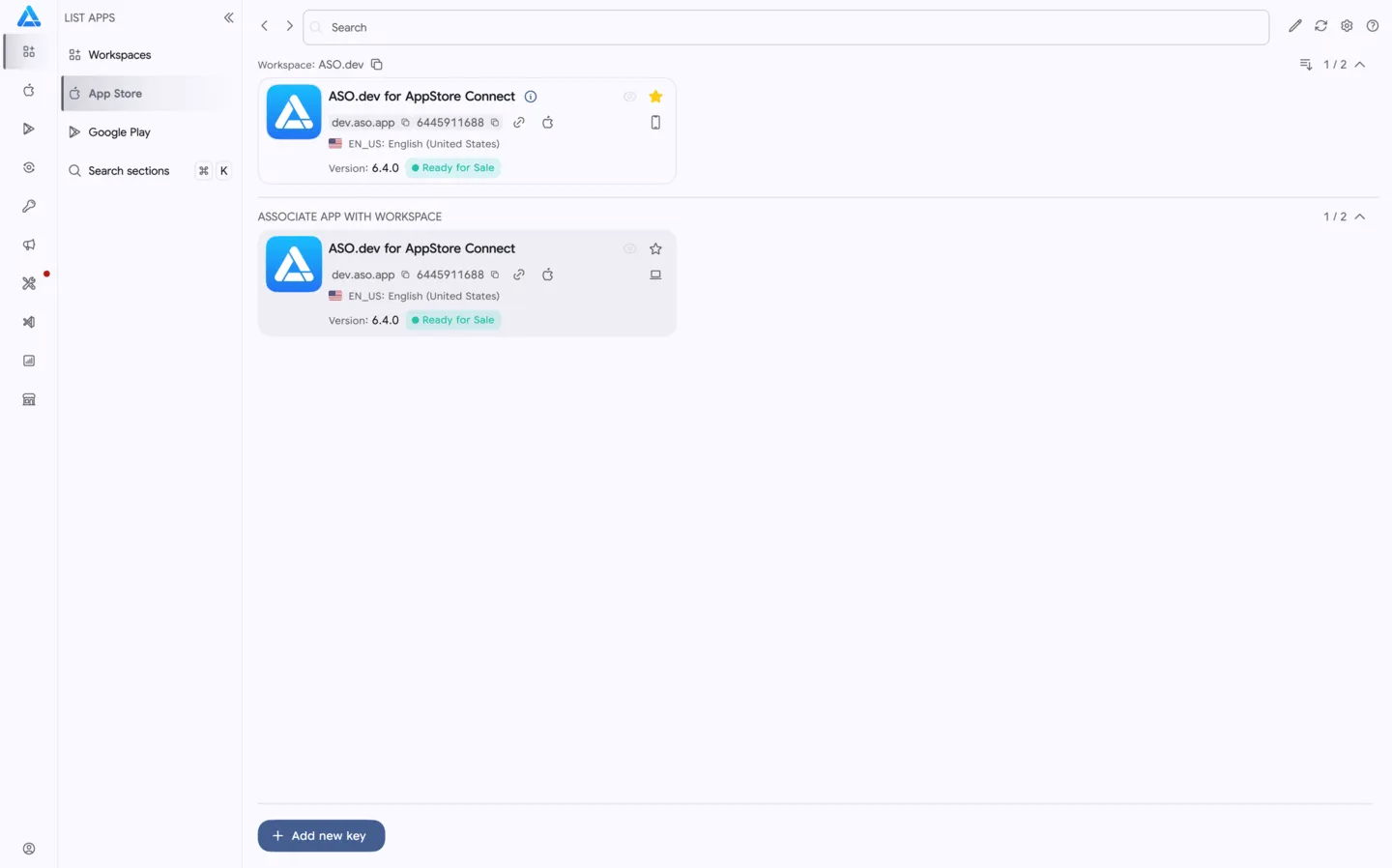
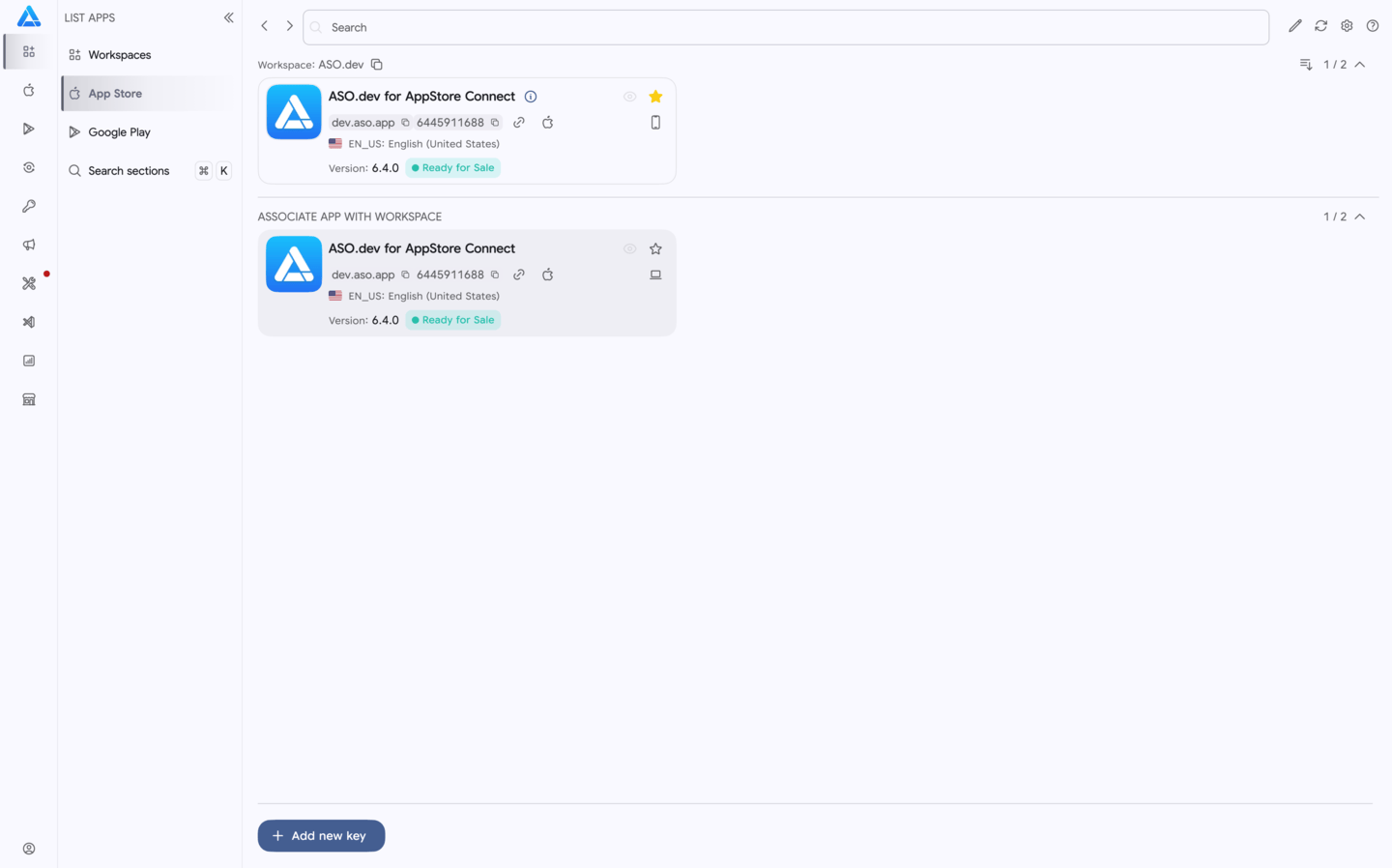
Section titled “Managing Apps”The list displays all apps currently available within the workspace.
It’s divided into two sections:
- Top: apps added to the workspace.
- Bottom: apps not yet added but available for the selected developer account.
Clicking on an app group title will expand or collapse that section.
To the right of each section, you can see the number of apps added to the workspace and the total available.
Pinning Apps
Section titled “Pinning Apps”To pin an app to the workspace, click on the app card or the star icon in the top right corner of the app card.
Clicking on the app card will open:
- Metadata Editor for the selected app when using a
.p8API key. - Tracked Keywords List when not using a
.p8API key.
Excluding Apps from Workspaces
Section titled “Excluding Apps from Workspaces”To unpin an app from the workspace, click the icon again.
The app will be excluded from the workspace but will remain in the list of unpinned apps.
Interface Elements
Section titled “Interface Elements”- Search: A search bar for quickly finding an app by its name or ID.
- Edit workspace
- Refresh app list
- Settings
- Help
Application card:
- App icon
- App title
- App ID, to copying to clipboard
- Bundle ID - when working with
.p8API key, to copying to clipboard - Base localization
- App version - when working with
.p8API key - State - when working with
.p8API key - Displays whether the app is pinned to the workspace.
- Platform icon ( iOS, iPadOS, macOS, tvOS, watchOS, visionOS)
- Displays that the app has been added to the workspace without a
.p8API key via a link to the app in the App Store.
Blue border around the app card indicates that the app is selected.
Switching between apps in the workspace
Section titled “Switching between apps in the workspace”To quickly switch between apps in the workspace, click on the currently selected app in the sidebar menu and select another app from the list.
This allows you to quickly switch between apps in the workspace without having to return to the app list.
Navigation to the app list
Section titled “Navigation to the app list”To return to the app list available in the workspace, click on the workspace name at the top of the sidebar menu, located above the app switcher list in the workspace.
Viewing App Information
Section titled “Viewing App Information”To view app information, click the button next to the app name.